Train-a-designer walkthrough of the PacFully editor: chrome, dimensions, materials, artwork, views, export, save/share, and the real keyboard shortcuts from the codebase.
Live editor: https://pacfully.in/editor/mailer-box. No account required to explore.
1. Opening a template
From mockups
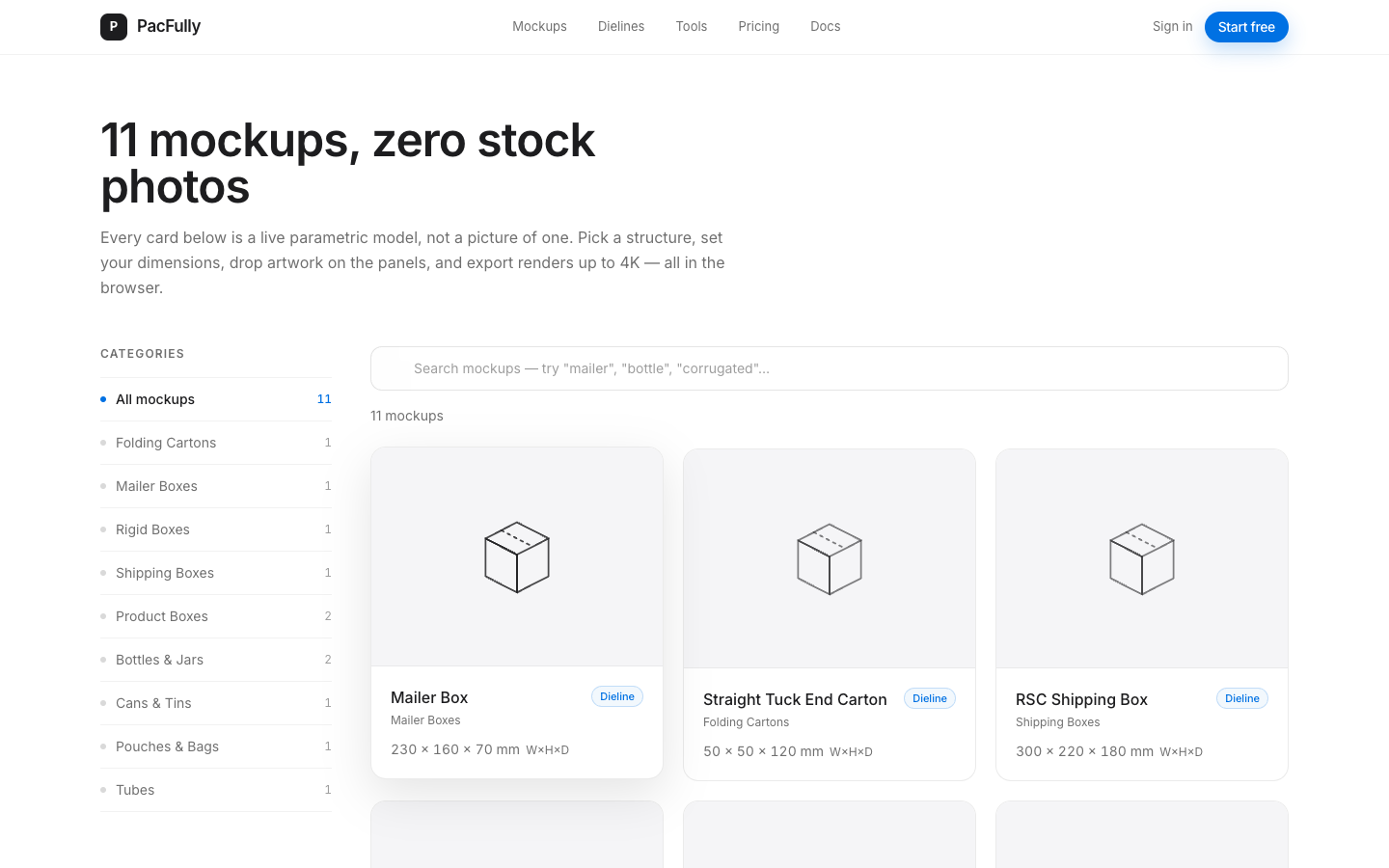
Open /mockups, pick a card (e.g. Mailer Box). Each card links to /editor/[templateId]. You can also hit /editor (defaults to mailer-box) or deep-link any catalog id.
2. Viewport chrome
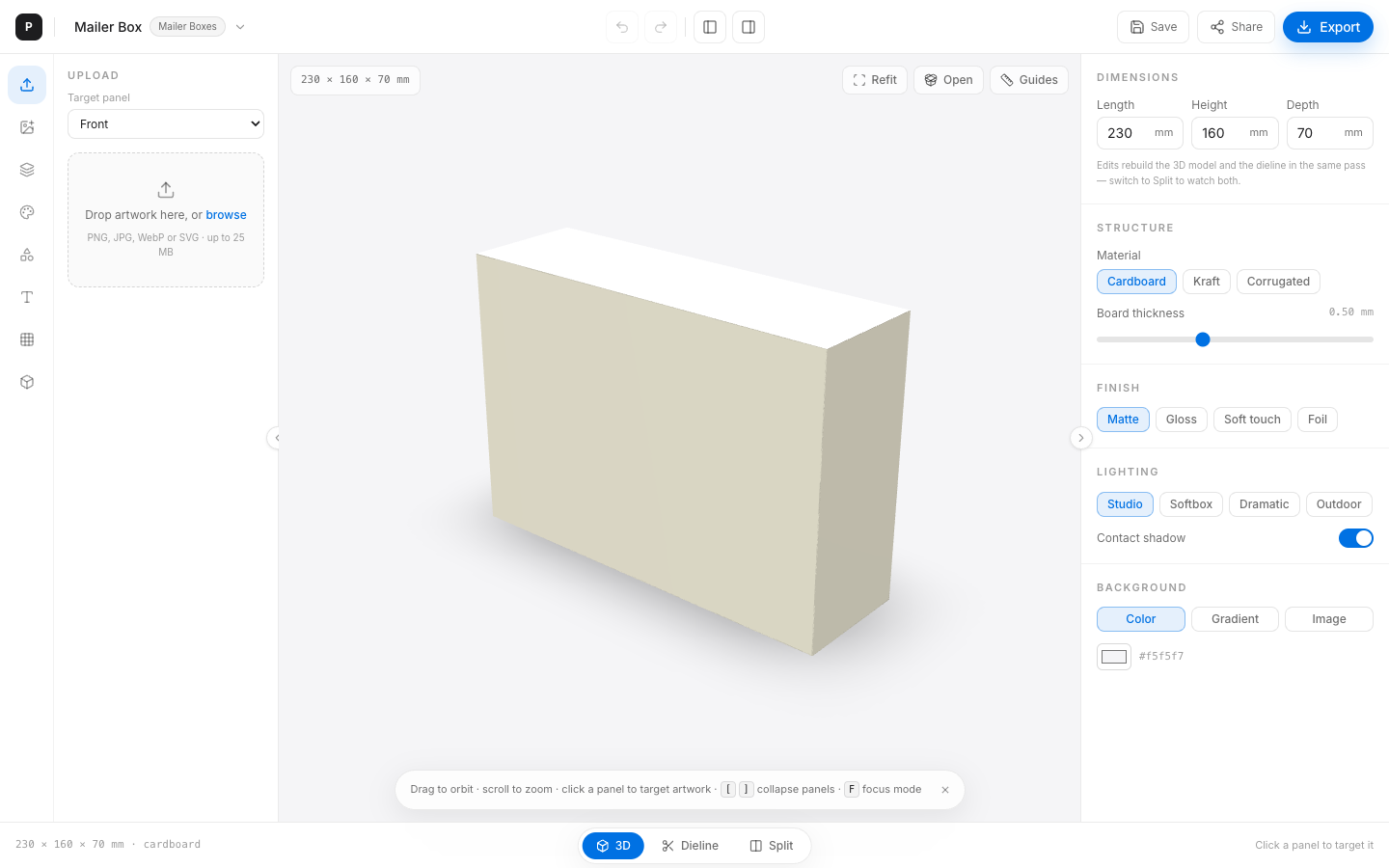
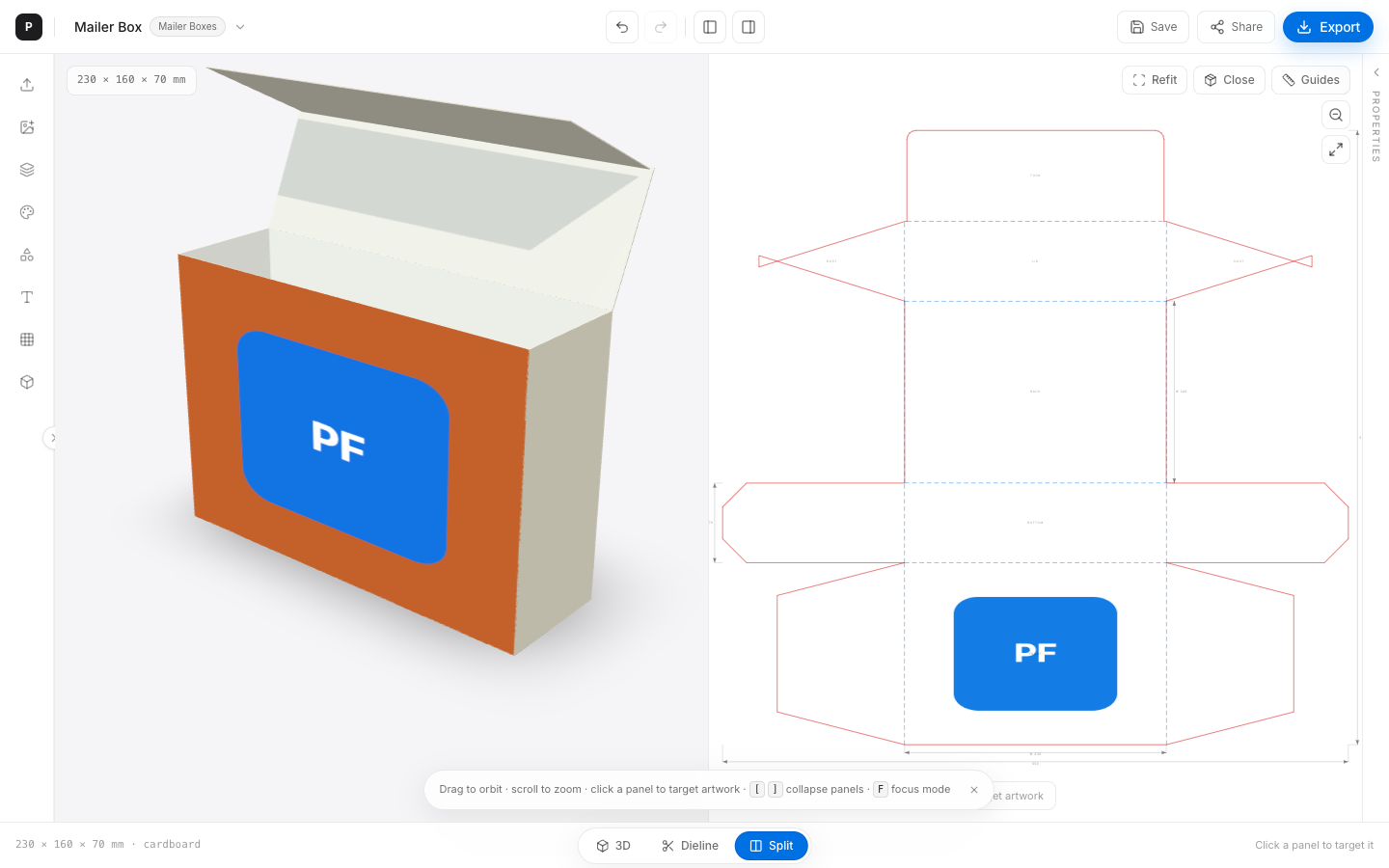
The shell is fixed full-viewport:
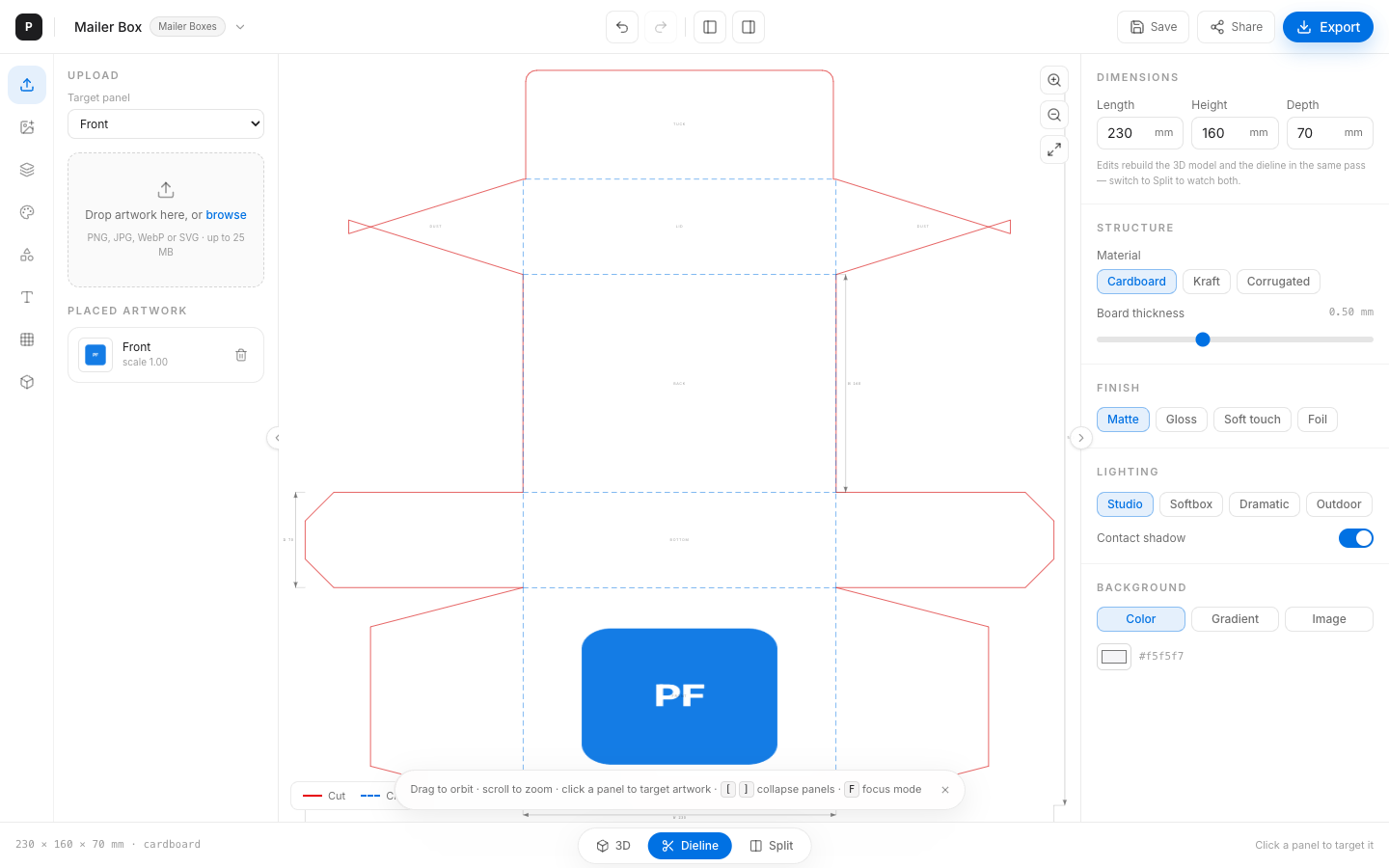
- Top toolbar — logo, template menu, undo/redo, left/right panel toggles, save, share, export.
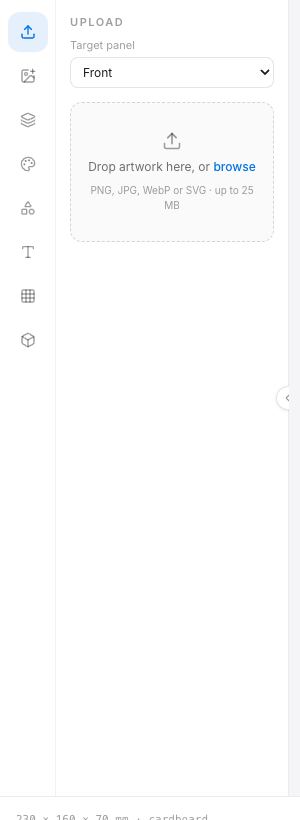
- Left asset panel — Upload, Logo, Prints, Colors, Symbols, Text, Patterns, Import 3D.
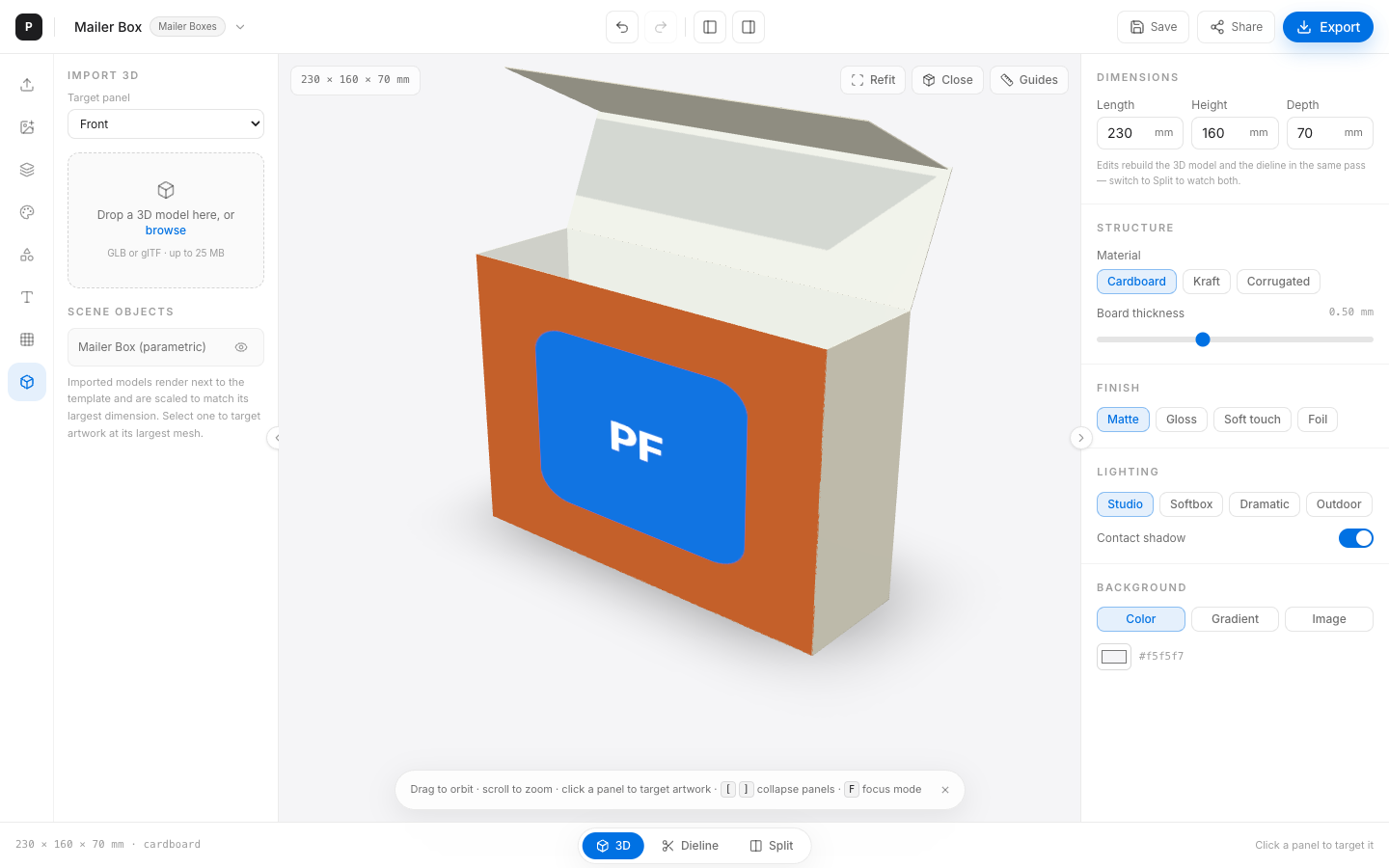
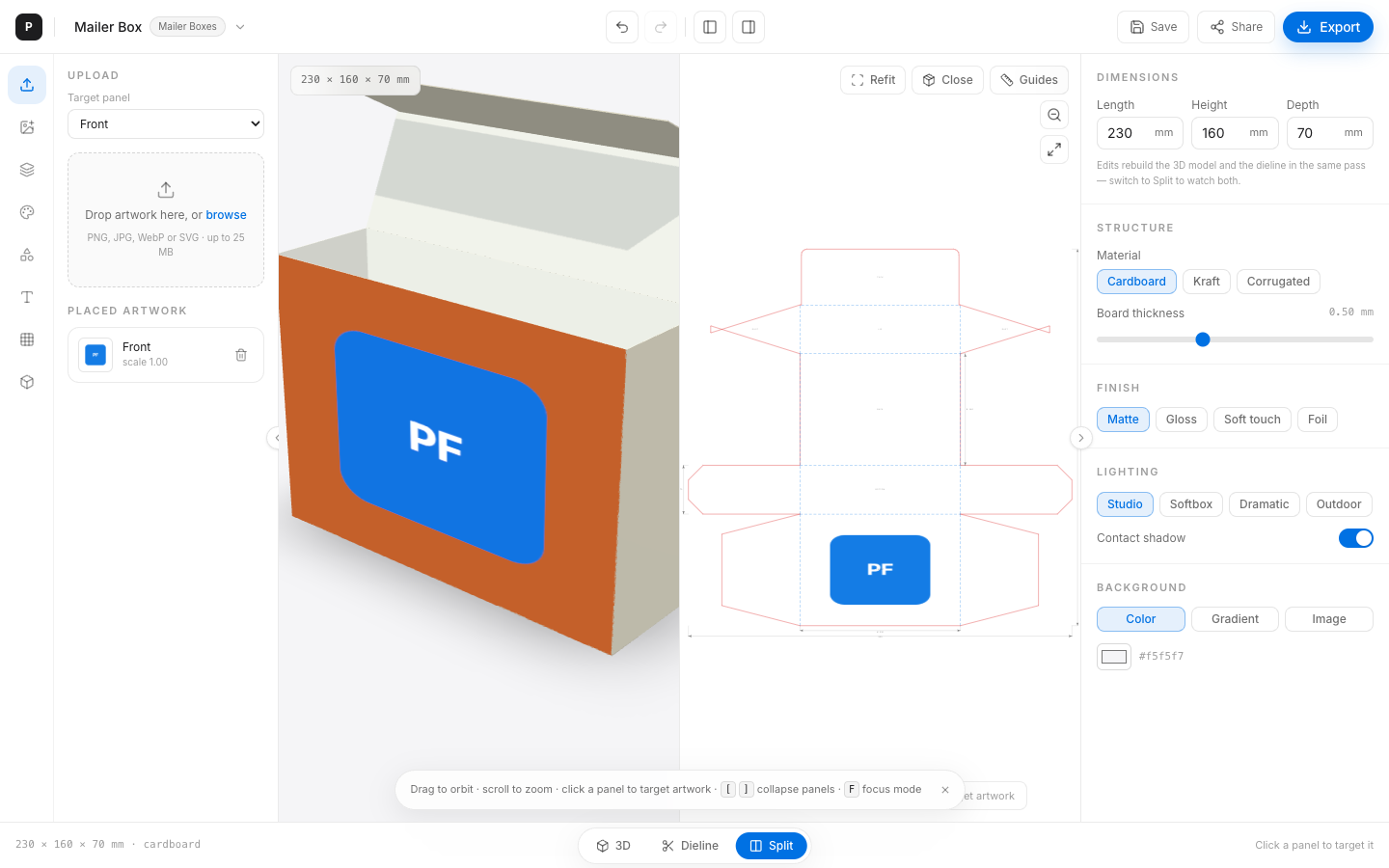
- Center canvas — 3D (R3F), Dieline SVG, or Split.
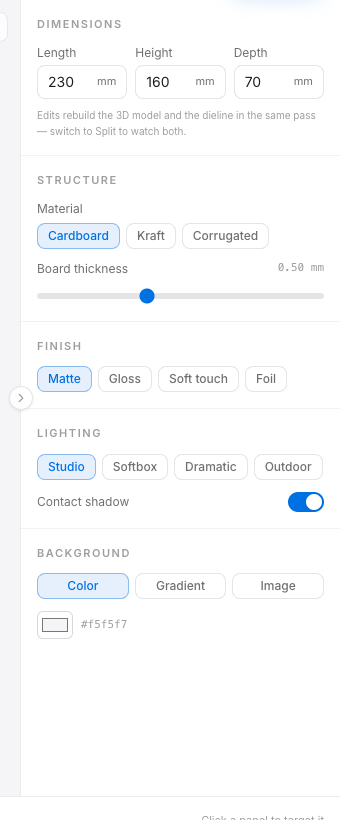
- Right properties — dimensions, material, thickness, finish, lighting, background.
- Bottom view toggle — 3D / Dieline / Split.

3. Collapse / focus mode
Verified shortcuts in EditorShell.tsx:
- [ — toggle left asset panel
- ] — toggle right properties panel
- F — focus mode (collapse both; press again to restore)
Toolbar buttons mirror the same actions (titles mention [ / ]). Prefs persist in localStorage key pacfully:ui:panels. On narrow viewports only one overlay panel stays open at a time.
4. Templates, dimensions, materials, finishes
- Template menu — switch among all 11 catalog entries without leaving the editor.
- Dimensions — Width / Height / Depth in mm (decimals allowed). Canonical clamp 1–3000 mm.
- Material — depends on template (e.g. cardboard / kraft / corrugated for boxes).
- Thickness — 0.2–1 mm slider on box structures.
- Finish — matte / gloss / soft-touch / foil (where listed).
- Lighting — studio / softbox / dramatic / outdoor presets + contact-shadow toggle.
- Background — solid color, named gradient preset, or uploaded image.
Changing dimensions rebuilds the 3D mesh and the dieline in the same Zustand commit — the product’s killer feature.
5. Package / panel colors
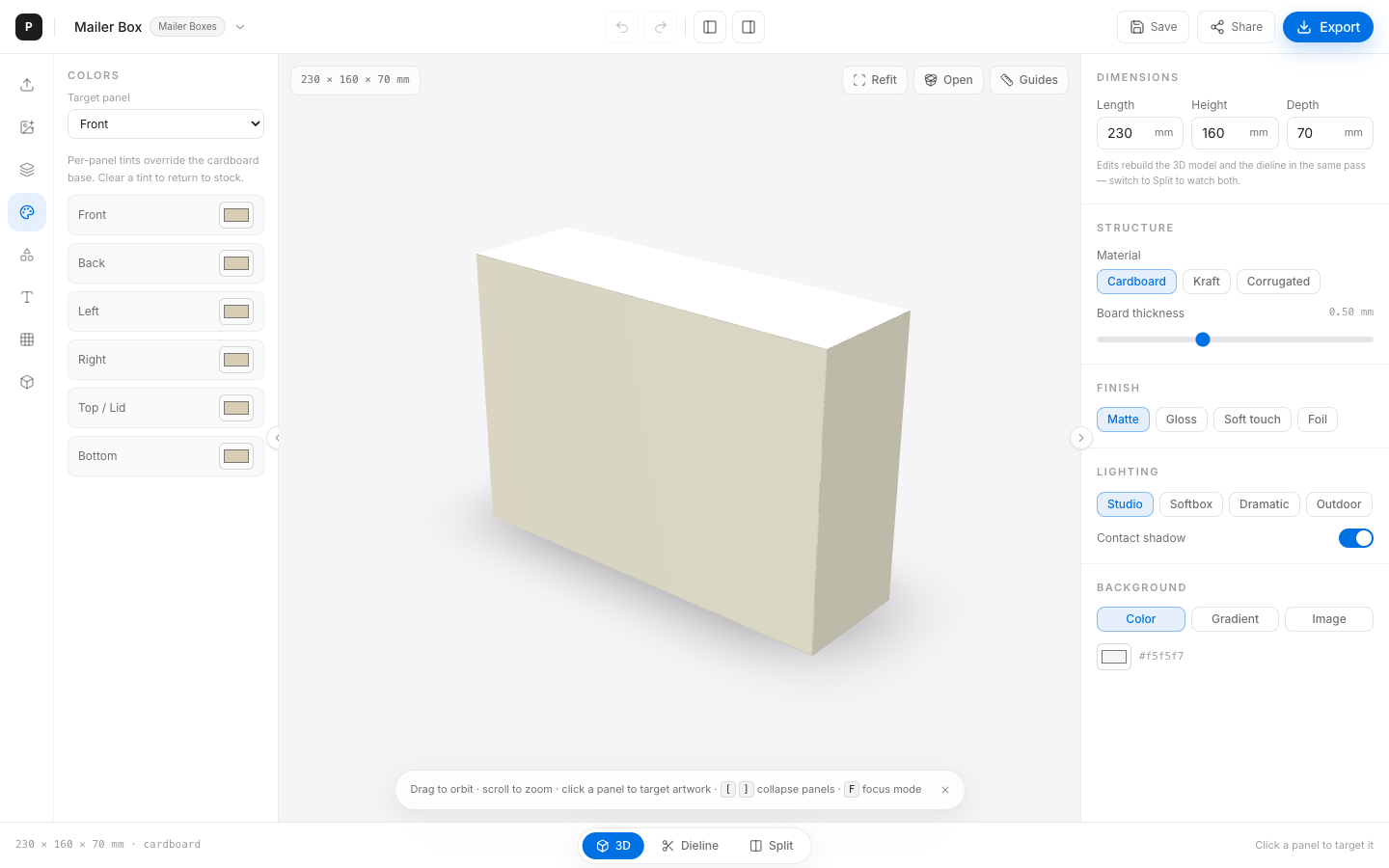
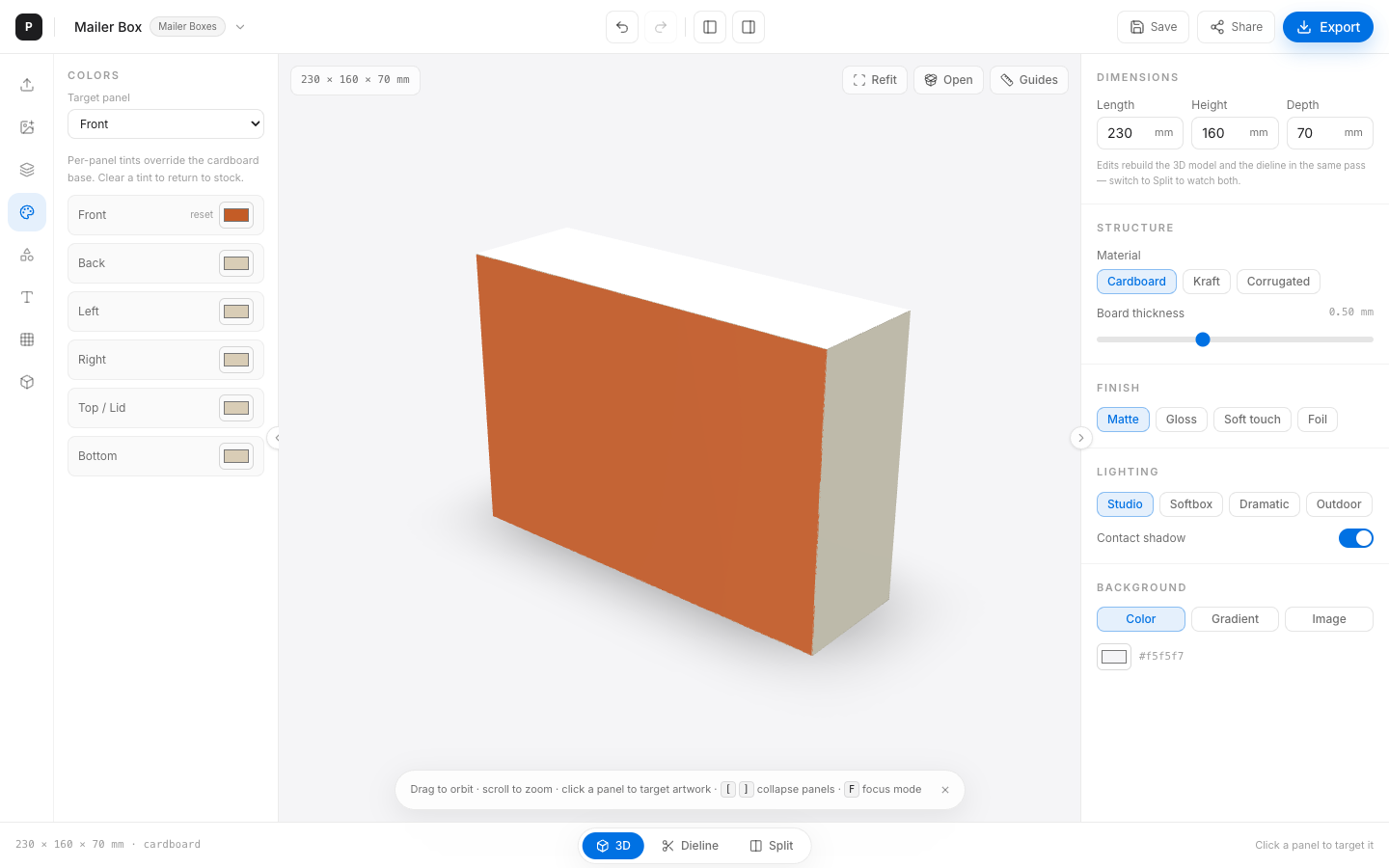
Open the Colors tab. Each printable panel has a color field. Tints override the material base; reset clears back to stock. Transparent artwork lets this underlay show through.
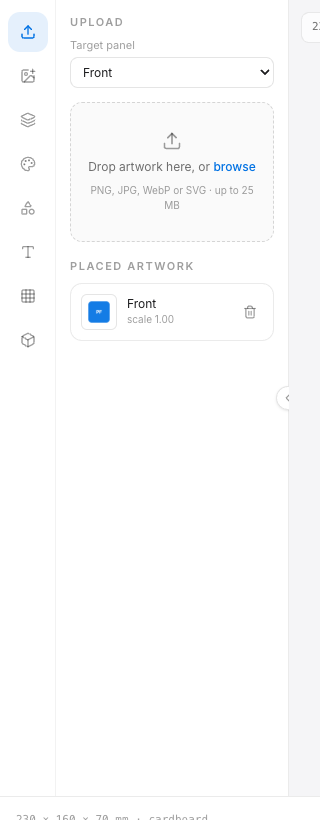
6. Artwork upload per panel
- Select a panel in 3D (click a face) or in the dieline.
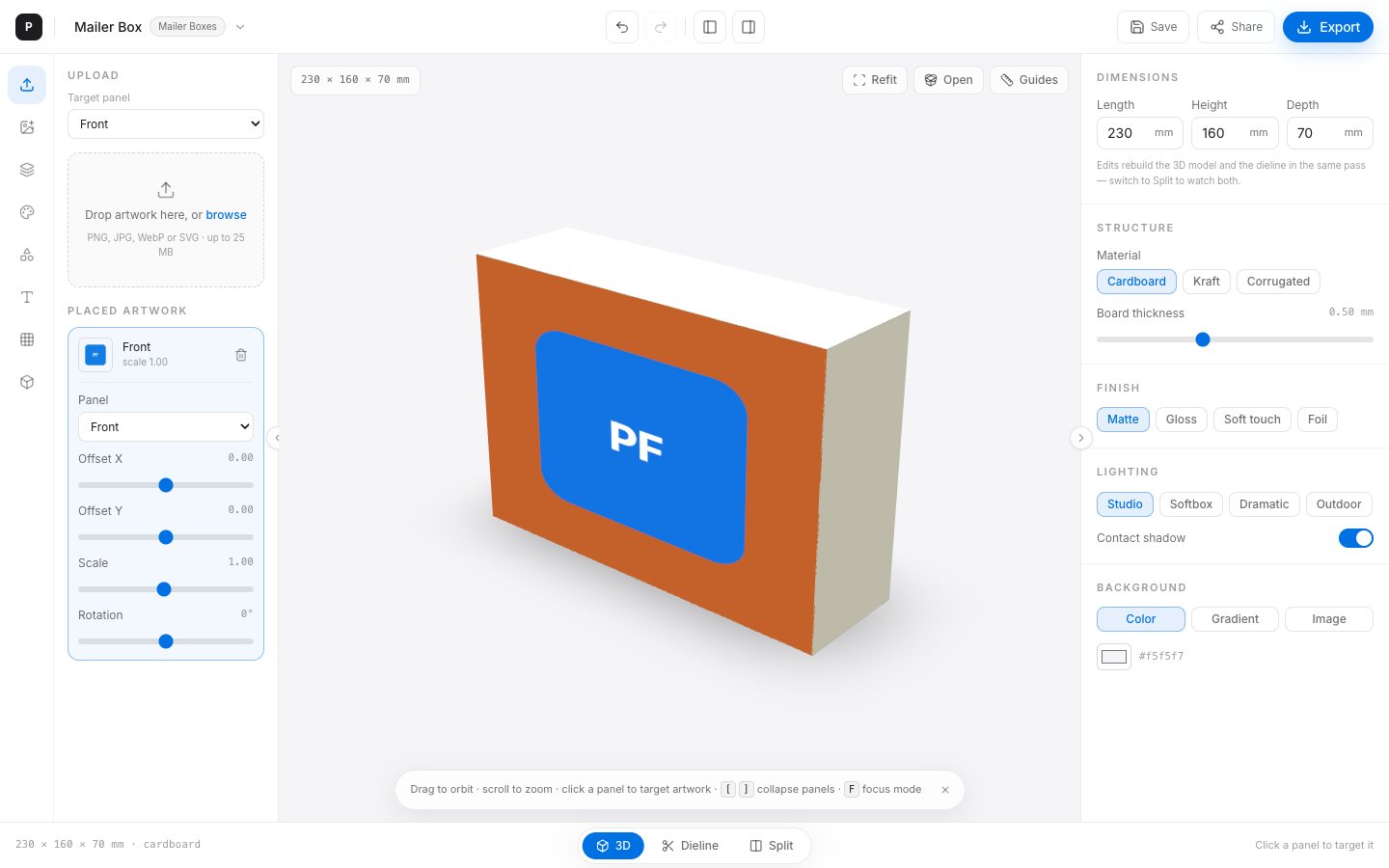
- Use Upload (drag-drop or file picker). Max 25 MB; non-images rejected.
- Artwork composites over the package color on an offscreen canvas, then maps to the panel.
- Under Placed artwork, select an item to edit Panel, Offset X/Y, Scale, Rotation.
Repeat for multiple panels — each artwork row targets its own panelId.
7. Undo / redo
- Toolbar undo/redo buttons
- ⌘Z / Ctrl+Z — undo
- ⇧⌘Z / Ctrl+Y — redo
History keeps up to 50 in-memory entries with ~900 ms coalescing per control. It resets on full reload; autosave keeps the latest snapshot only.
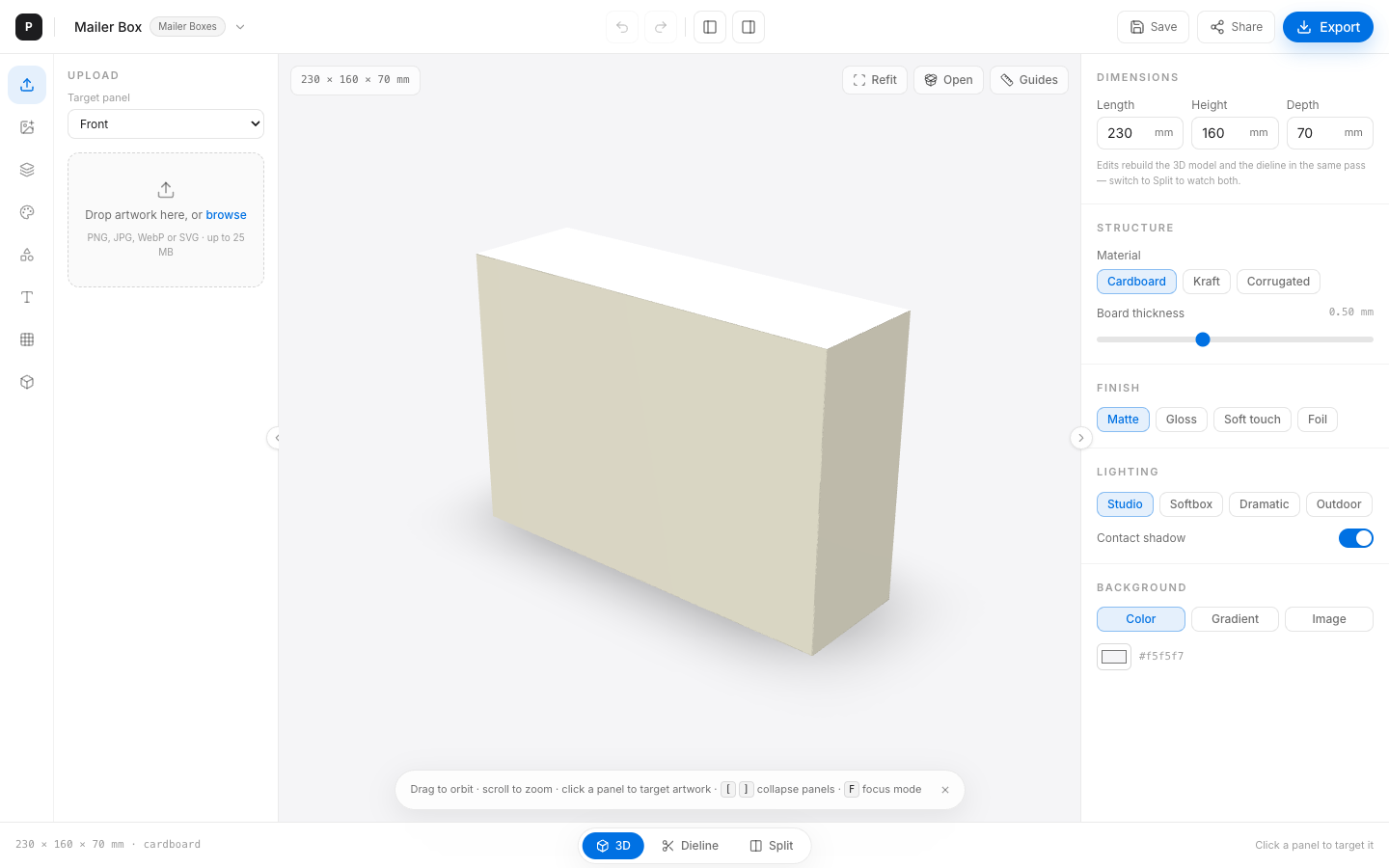
8. Open / close lid
On animatable box templates, a floating control toggles lid/flap open state. The mesh lerps animatables each frame — not a separate animation timeline.
9. Import GLB / glTF
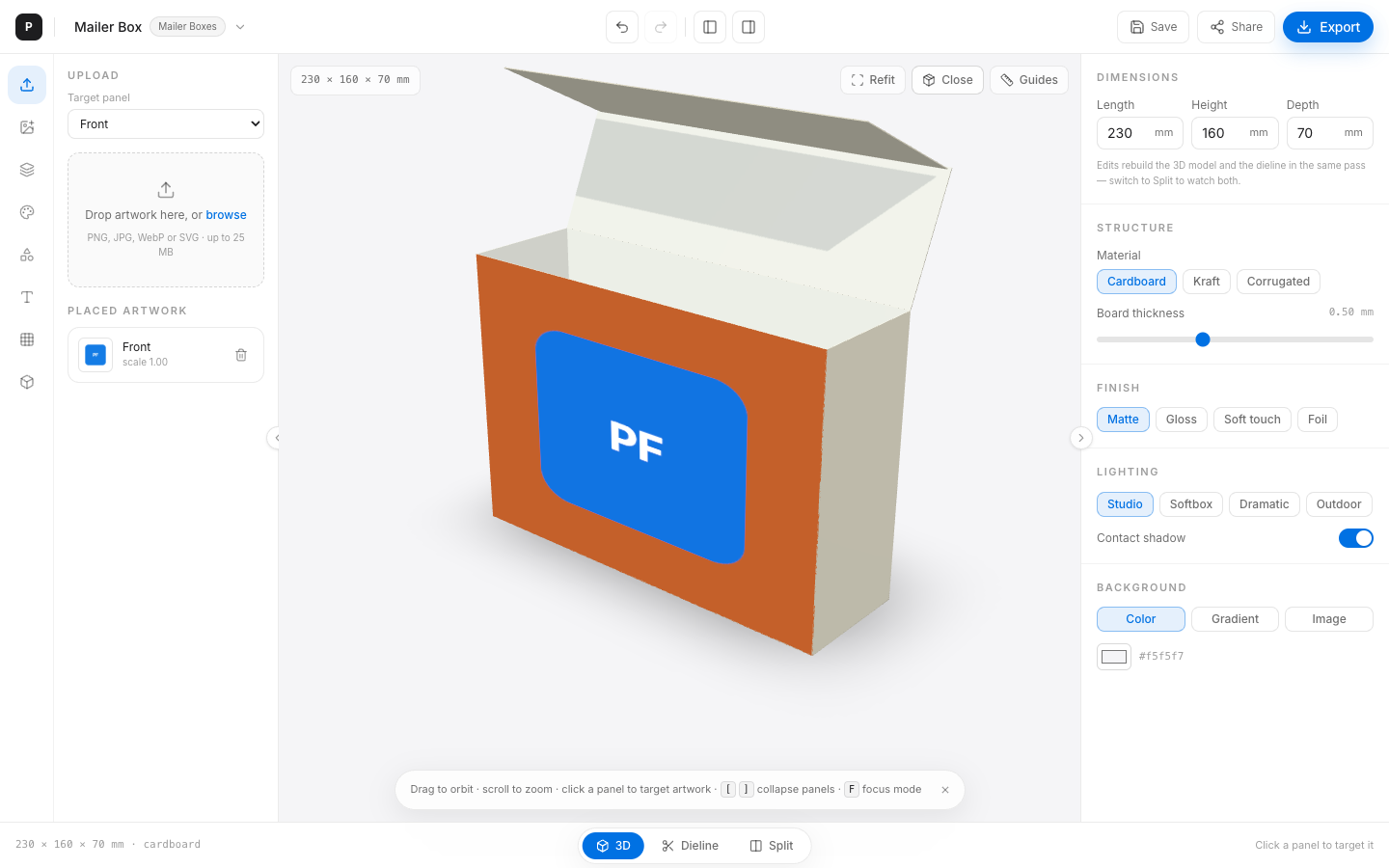
Asset panel Import tab accepts self-contained GLB / glTF up to 25 MB. External-buffer .gltf, Draco/KTX2, and non-glTF formats are rejected. Large imports (>~1.5 MB) are session-only — not embedded in share links / cloud sync.
10. Views: 3D · Dieline · Split
Use the bottom pill (ViewToggle) to switch. Split mounts both panes side by side. Panel selection is shared across views. See the Dieline guide for structure detail.
11. Export dialog
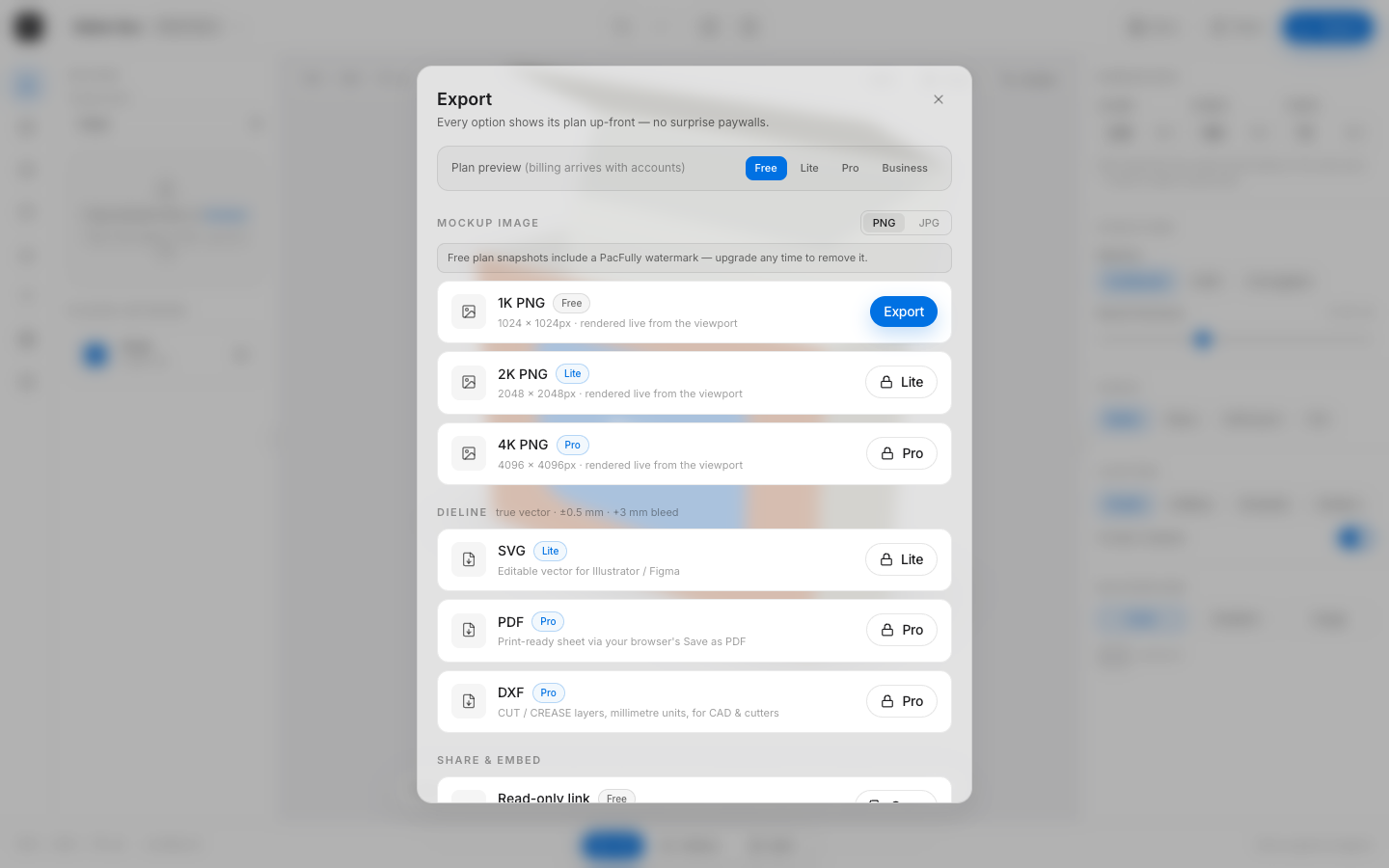
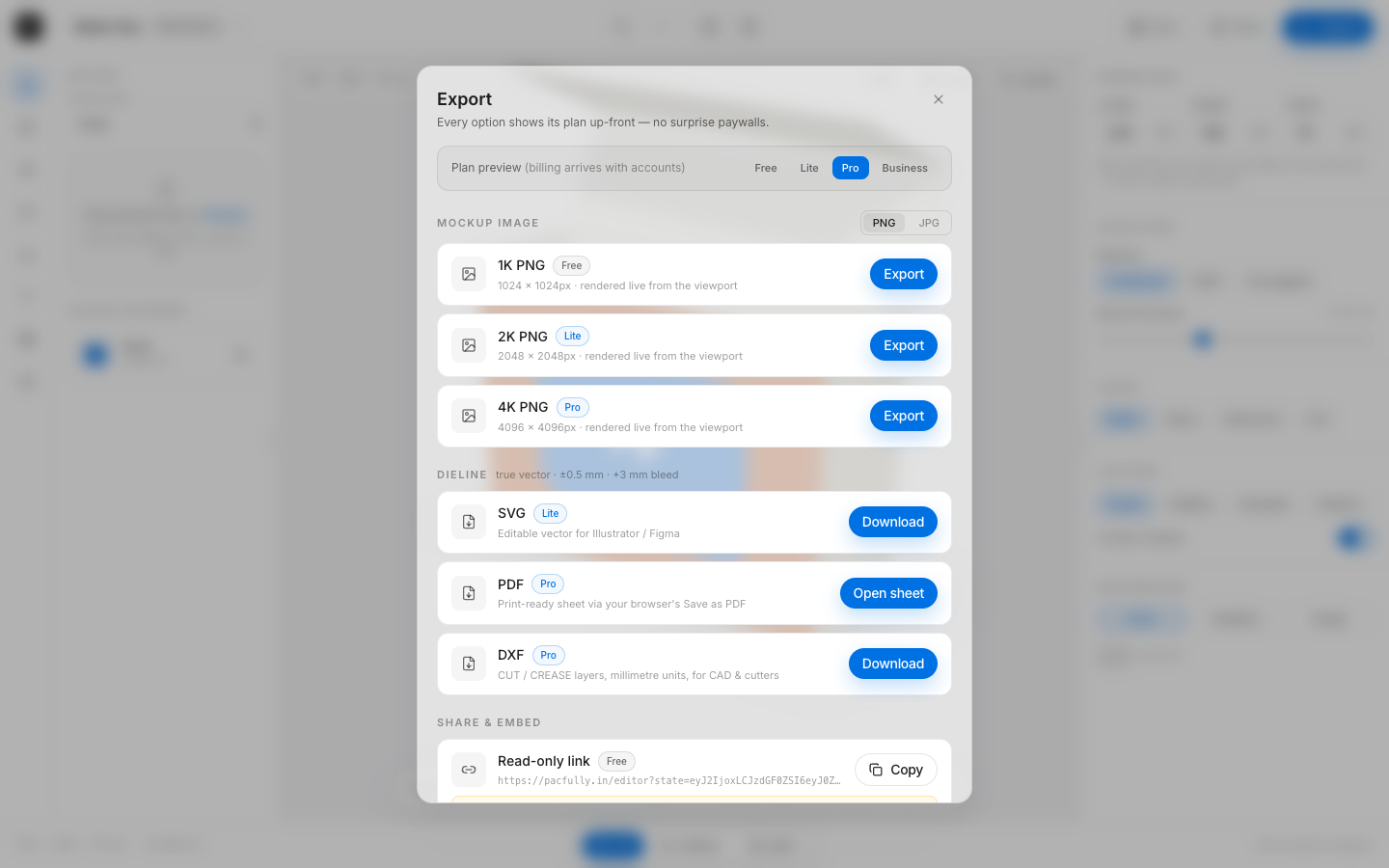
Toolbar Export opens a modal. Every row shows a plan badge up front:
| Export | Gate (UI) | Notes |
|---|---|---|
| PNG 1K | Free | Watermark + banner on free |
| PNG 2K / JPG | Lite | WebGL snapshot |
| PNG 4K | Pro | WebGL snapshot |
| Dieline SVG | Lite | True vector |
| Dieline PDF | Pro | Browser print sheet — not a generated vector PDF file |
| Dieline DXF | Pro | R12, mm, CUT/CREASE/BLEED/DIMS |
| Share link | Free | URL state; large art stripped |
| Embed iframe | Business | &embed=1 chrome |
Client-preview: the dialog’s Plan preview switcher changes the Zustand plan locally. There is no live billing enforcement. Use it to evaluate UX — do not treat it as a purchase.
12. Save & share
- Save — always writes localStorage
pacfully:project:[templateId]. When logged in, also POSTs/PUTs/api/projects(free tier: max 3; 403 falls back to local-only notice). - Share — copies
/editor?state=…link. Warns when artwork was stripped for URL size.
13. Keyboard shortcuts (verified)
| Key | Action |
|---|---|
| ⌘Z / Ctrl+Z | Undo |
| ⇧⌘Z / Ctrl+Y | Redo |
| [ | Toggle left asset panel |
| ] | Toggle right properties panel |
| F | Focus mode (both panels) |
Shortcuts are ignored while focus is in an input, textarea, select, or contenteditable field. No other editor hotkeys are registered in EditorShell.
Next
Continue with the Dieline user guide for cut/crease literacy, bleed, and vector export practice.